Comprehensive Guide to Online TDS Payments Under the New Tax Reforms
Navigating new tax reforms can feel overwhelming, but keeping up with the latest statutory compliance updates ensures a smooth filing process. Following recent structural changes to the tax framework, the government has streamlined how Tax Deducted at Source (TDS) on specific transactions—such as property transfers—is filed and deposited online. This blog post provides a generic step-by-step walkthrough to successfully complete your TDS compliance journey.
⚠️ Important Effective Date Notice:
The New Income Tax Act, 2025 officially came into effect on April 1, 2026[cite: 1]. Payments made on or after April 1, 2026: You must follow this updated guide.
1. Portal Access & Navigation
- Go to the official government tax e-filing portal -
https://www.incometax.gov.in. - Click Login at the top right of the homepage and login with your credentials.
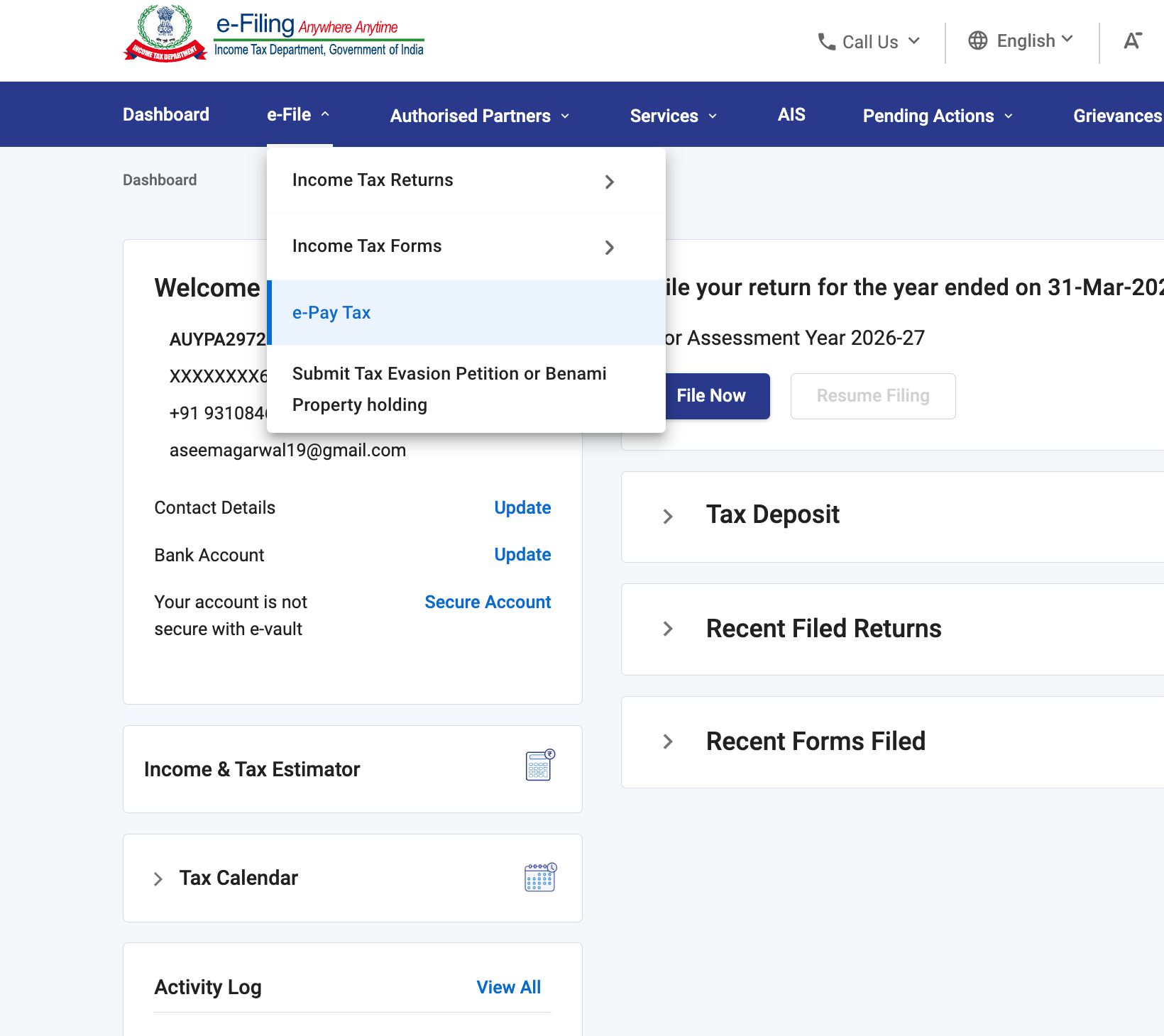
- Once inside your dashboard, look at the main navigation menu and click on e-File > e-Pay Tax.
2. Selecting the Applicable Act
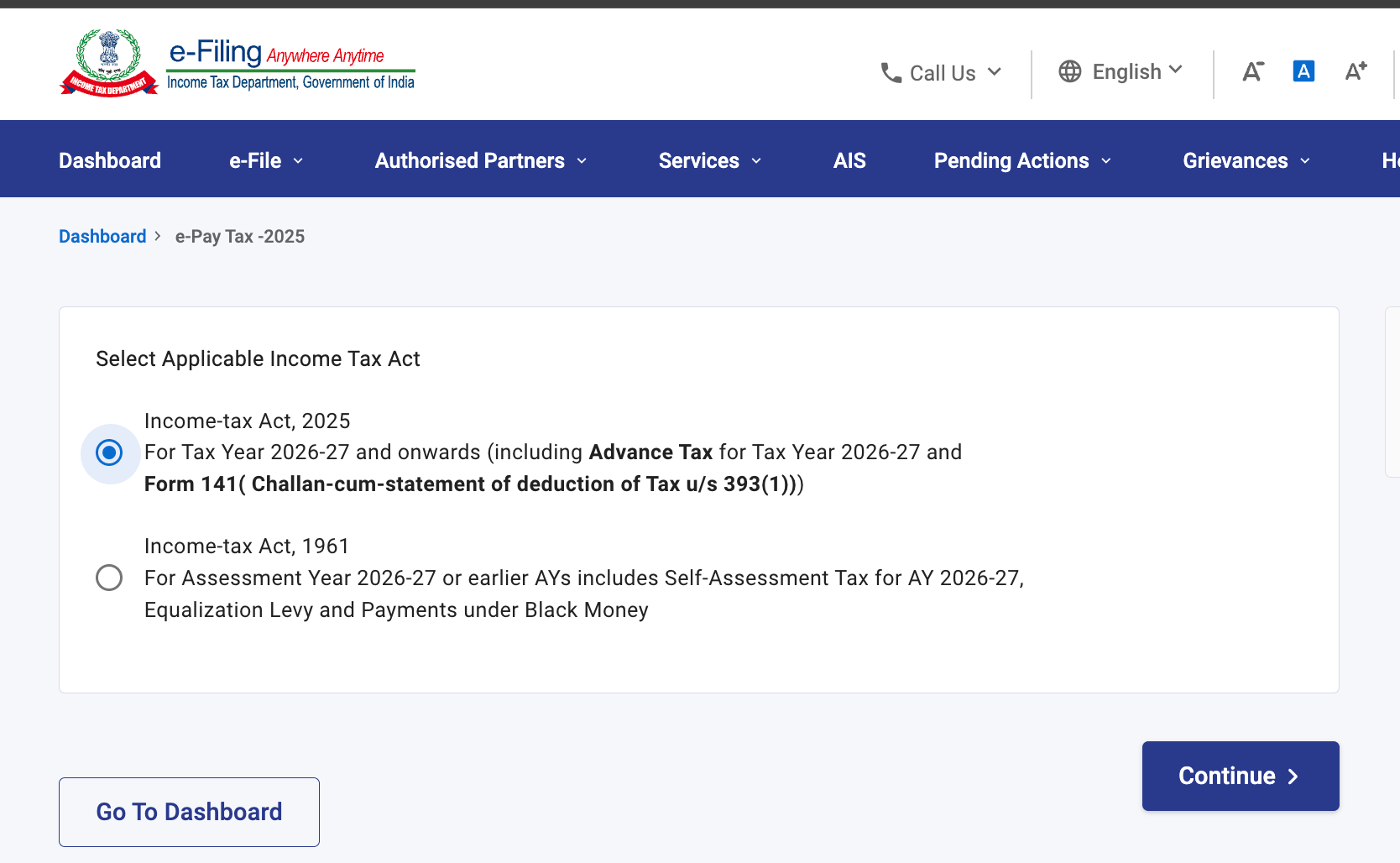
You might see a prompt asking you to classify the regulatory window under which your transaction falls
- Select the Income-tax Act, 2025 option if your 'Date of payment/credit' is on or after April 1, 2026.
- Click Continue to proceed to the payment type selector page.
3. Creating a New Payment Challan
On the e-Pay Tax landing area, initiate a fresh document session[cite: 1]:
- Click the + New Payment action button[cite: 1].
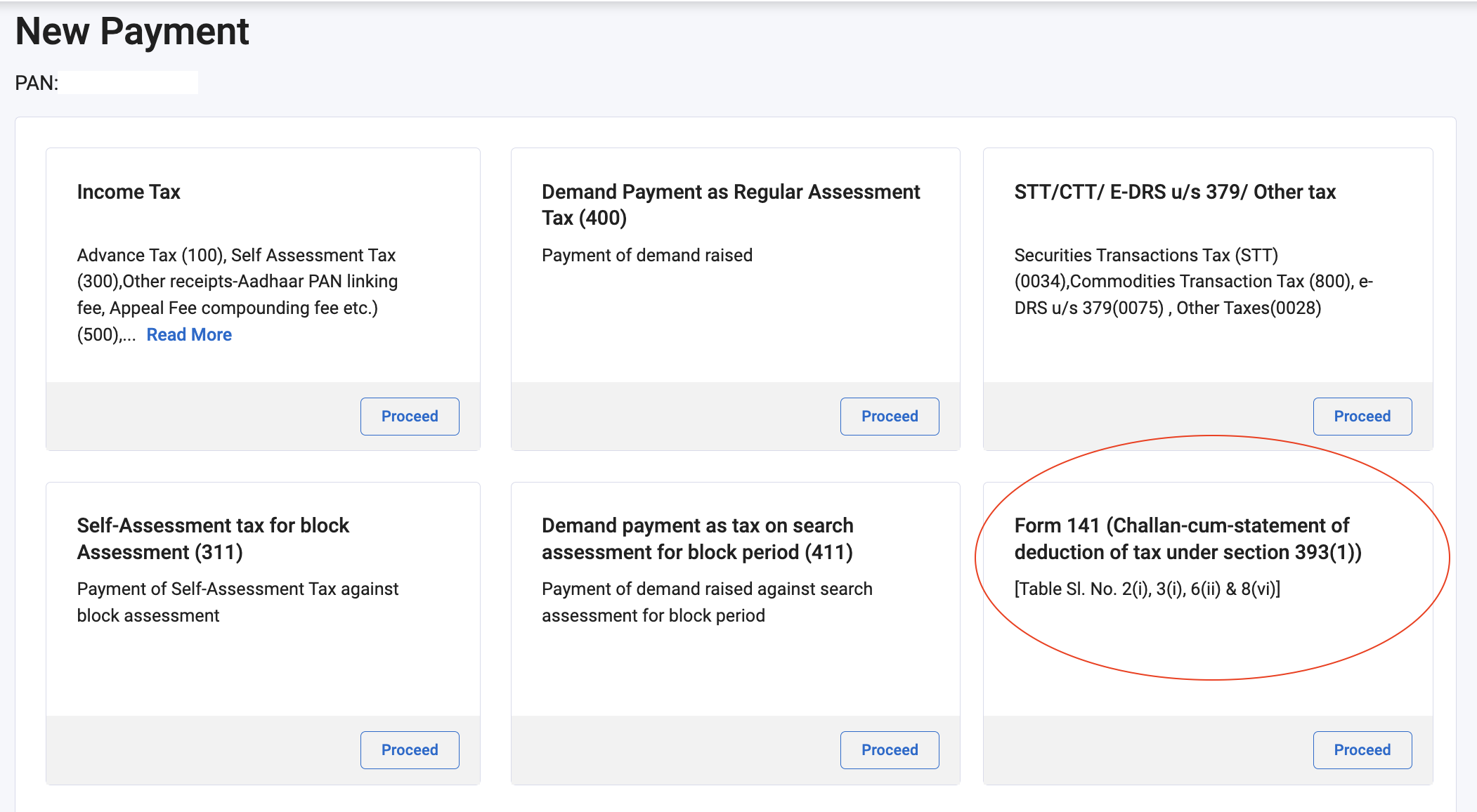
- From the grid of available categories, select the relevant tax category box designated for property deductions or individual structural declarations (e.g., Form 141 - Challan-cum-statement of deduction of tax) and click Proceed[cite: 1].
Get instant access to expert, data-driven property insights.
Request your free Brickfi investment report now and make smarter real estate decisions today.
4. Identifying the Deductee Type
A modal window will request the status of the entity from whom you are deducting tax[cite: 1]:
- Choose Corporate Deductee(s) if the recipient/seller is registered as a company.
- Choose Non-Corporate Deductee(s) if the recipient/seller is an individuals, Hindu Undivided Families (HUFs), partnership firms, and LLPs
5. Personal Particulars & Transaction Specifics
The form is broken down into structured tabs[cite: 1]:
- Part A (Deductor Details): Your PAN, full legal name, and communication addresses are automatically loaded from your active tax registration profile[cite: 1]. Verify that these details are current. Select the Residential Status of your deductee[cite: 1].
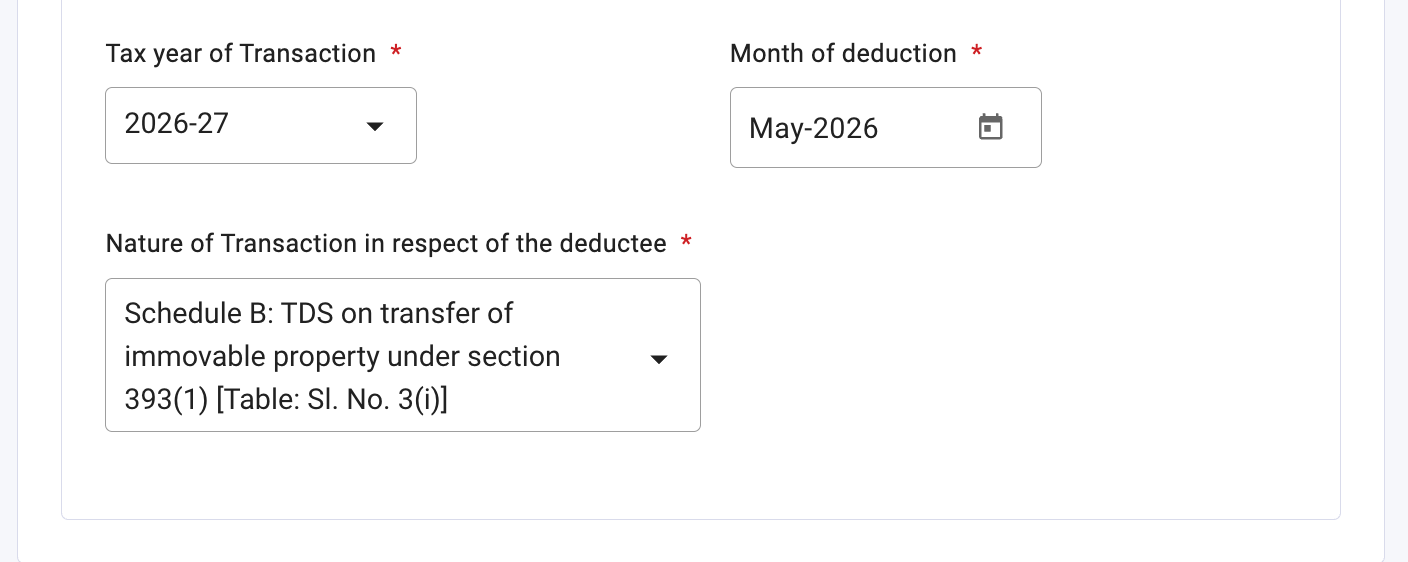
- Temporal Timelines: Carefully select the appropriate Tax Year of Transaction and corresponding Month of Deduction mapped precisely to when you initiated the transaction paymen
- Nature of Transaction: Select the relevant statutory clause governing the sale or transfer from the dropdown listing ->TDS on transfer of immovable Property under section 393 (1)
6. Property & Payment Terms Allocation
In Part B, provide comprehensive property description metrics[cite: 1]:
- Select your specific asset class (e.g., Building or part of building or Land) and input its full address.
- Financial Values:
- Fill in the Date of Agreement i.e the day original agreement was signed
- Stamp Duty Value - This is only applicable on payable of last installment or when a lumpsum is paid to seller. Confirm this with value your seller. Usually this is the guidance value in the area multiplied with the size of your property.
- Total Agreed Sale Consideration - Total sale value agreed with your seller. Check for this in your agreement or the final cost sheet shared by your seller.
- Installment Handling:
- If paying in installments, choose Instalment else Lumpsum.
- Select the appropriate installment type (First, Subsequent or Last)
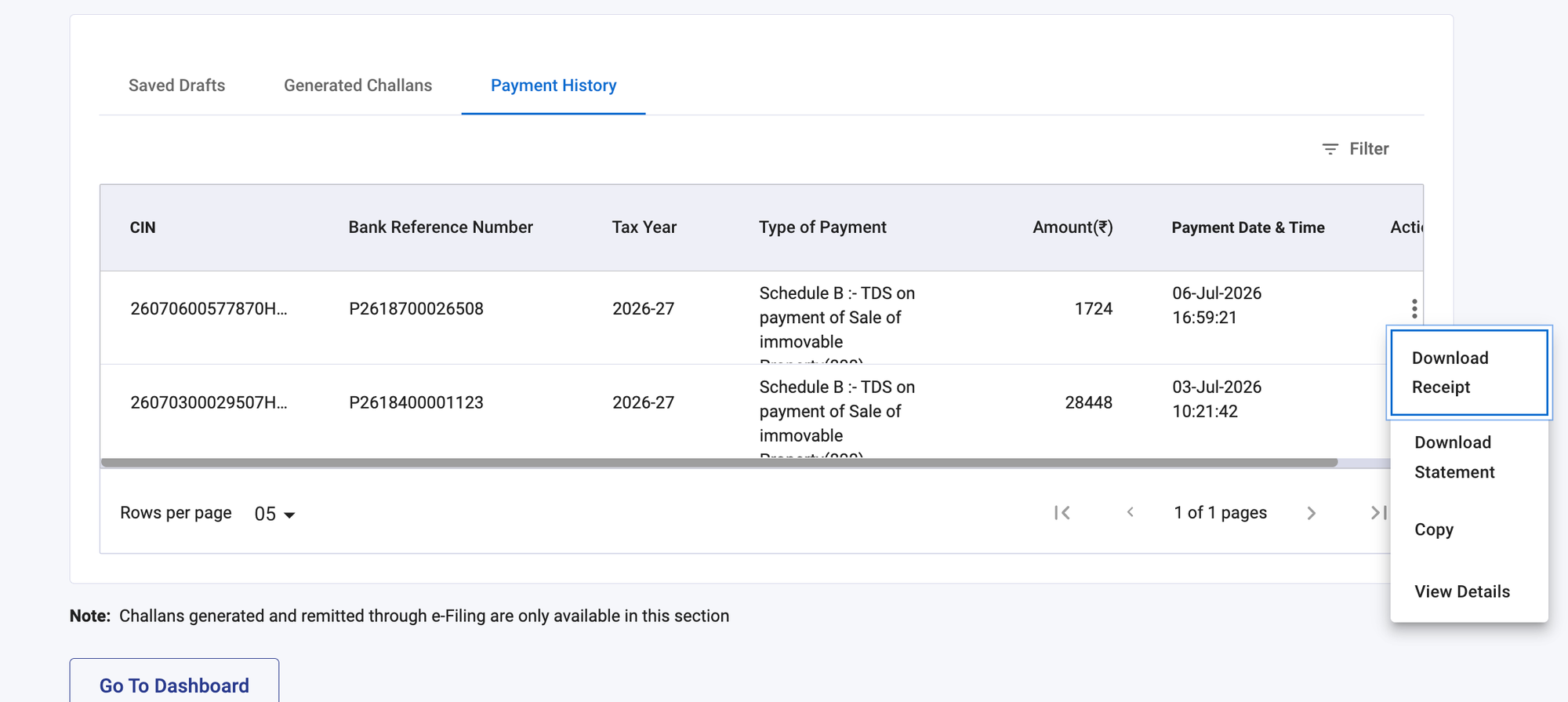
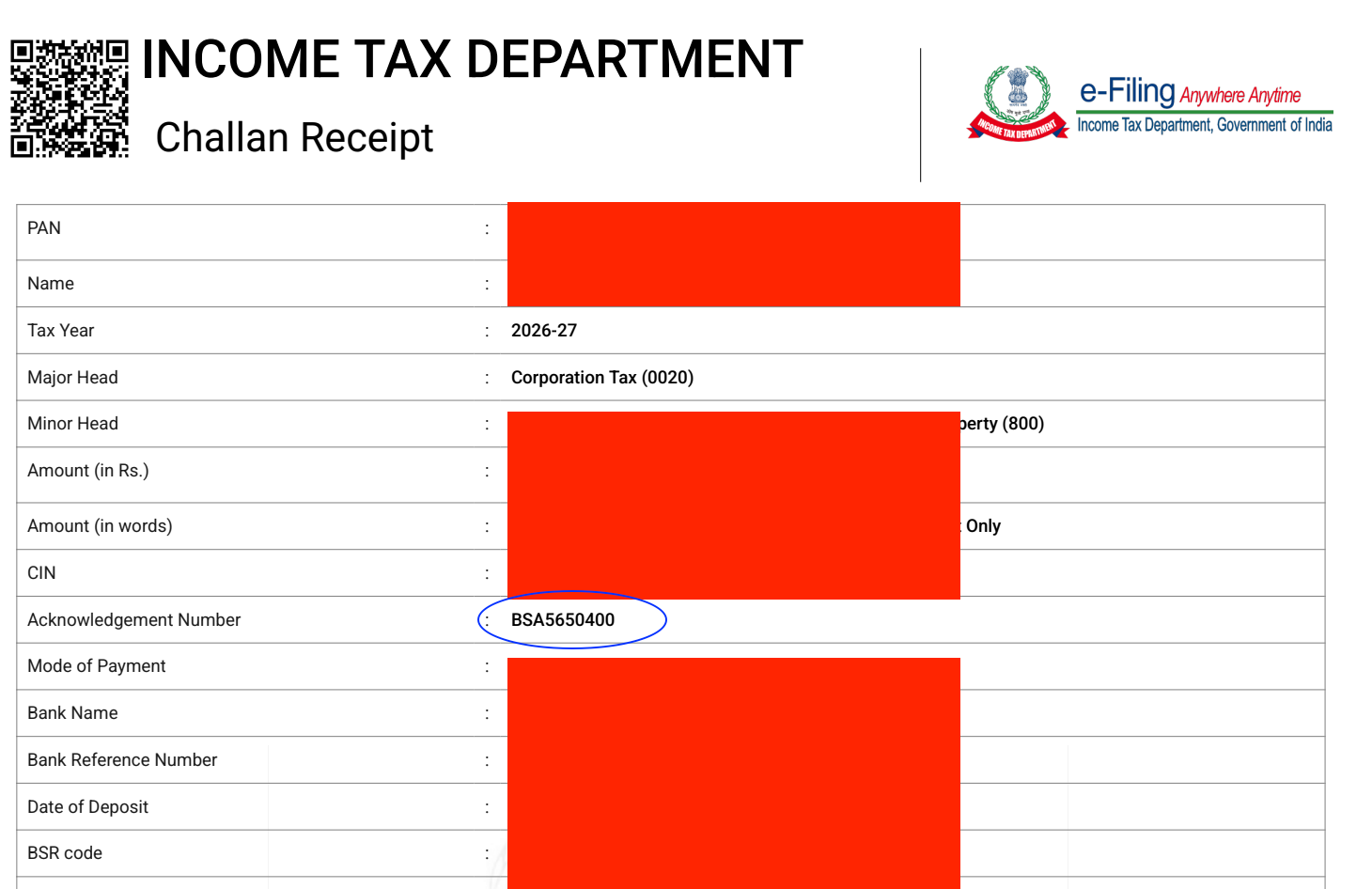
- For subsequent or last installment, enter the acknowledgement number from last installment. You can find the same in the receipt/challan generated for the last payment. (Download the same from Payment History tab)
Get instant access to expert, data-driven property insights.
Request your free Brickfi investment report now and make smarter real estate decisions today.
7. Buyer PAN Verification & Calculation
Navigate to the - Details of all Buyers. For each co applicant/co buyer; add a row in this section. Provide the accurate Permanent Account Number (PAN) of the recipient. The database will fetch their registered name to prevent mistakes. Enter their share percentage (e.g., 100% for a sole owner).
8. Seller PAN Verification & Calculation
Under Section 12. Details of all deductees; add the seller details. If there are multiple sellers add individual details for each and add the Proportion of sale considering percentage accordingly. If there is only one seller enter 100 for the same.
9. Transaction Details
Enter the details for the transaction for which the TDS has to be paid.
- Select the PAN number of the deductee (from the dropdpown). If the dropdown is blank, make sure you have entered the correct deductee type (check Para 4 above). You can get these details by reaching out to your seller.
- D. Proportionate amount of Stamp Duty value - Only needs to be filled if the installment is lumpsum or its the last installment in the overall transaction. Check this value with your seller as well.
- E. Total amount paid/credited in previous instalment(s) - If this is a subsequent installment or last installment, enter the total value paid before the current transaction.
- F & G: Amount paid in current transcation.
- H: Original date of payment to the seller
- I. Whether Section 395(1) applicable* - Select NO. This is only applicable if you qualify for no deduction under lower income category
- K: Rate at which tax deducted (%) * - Enter 1
- L: will autopopulate
- M: Date of deduction - Same data as original payment to the seller.
Once you fill above details, Section 14 will auto populate and will show the Total Payment to be done.
Get instant access to expert, data-driven property insights.
Request your free Brickfi investment report now and make smarter real estate decisions today.
10. Settlement & Bank Integration
Review the calculated payment summary field. Choose your preferred payment option from the supported banking routes (Net Banking, Debit Card, RTGS/NEFT, or UPI/Credit Card options). Once the payment has been made; you can download the generated receipt under payment history tab.